
How Do I View My Scores and Answers?
View Progress
Under My Courses, find the appropriate course tile. (To find your course dashboard, see this article.)
On the course tile, click Score in the left corner.
Under Scoring Details, you'll be looking at your progress by module.
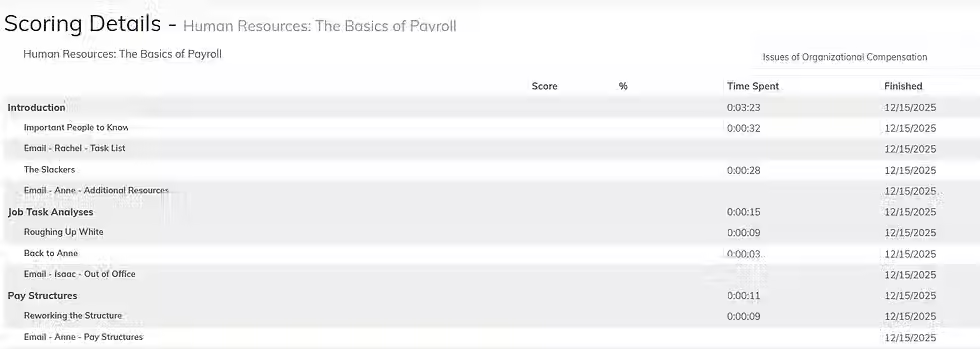
Use the drop-down menu on the right to change modules.

View Answers:
Under Scoring Details, navigate to the column labeled View Answers.

Under the Viewing Answer column, Click View Answers. (Keep in mind, View Answers is not visible for CPAs until a course is completed.)

Scoring Details:

The scoring details page only shows one module of the course at a time. You can toggle between course modules using the drop-down menu on the right.
Each row represents a Section or a Page within the Module (listed at the top).
Columns (from left to right):
Score: Your score for each section.
% (% of total): The percent you scored for each section.
Time Spent: The time you spent on each section.
Finished: The date that section was completed.
View Answers: Takes you to the View Answers page.
Viewing Answers:
On the view answers page, you'll see the following
The question as it was presented in the assessment, including graphics or images.
Your answer.
Red X: For an Incorrect answer.
Green Check: For a Correct answer.





Comments