
Starting Your Course
- VTR Learning
- May 1, 2017
- 2 min read
Finding "My Courses" Dashboard
Once logged in, navigate to the top right of the webpage, where you will see a "My Account" tab. Hover over it, and you will see a drop down. Click "My Courses".

Clicking "My Courses" will take you to your dashboard so you can start taking your courses!
Launching Your Course
After successful checkout, you will be taken to your "My Courses" dashboard. There you should see your recently purchased courses along with our complimentary orientation course.
Simply hover over and click any course tile to get started. Course tiles will automatically rearrange themselves in order of the most recent activity.
Now that you have launched your course, let's go over some simple in-course navigation.
When you enter your course, you will be taken to the last point you completed, which is indicated in the Table of Contents.
The Table of Contents allows you to keep track of your position in the course and provides easy navigation to previous modules or sections. Need to refresh yourself on something in the previous module? Simply click that module you wish to go back to and voila.
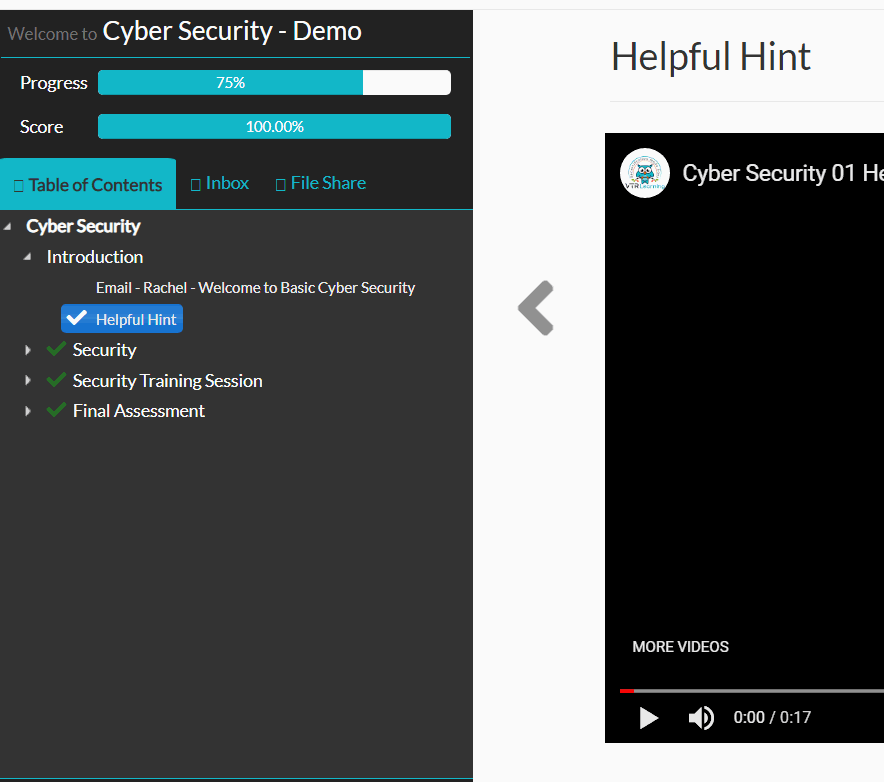
Just above the Table of Contents, you also have a score and progress bar.

(Please note for some organizations, such as NASBA, the score and/or progress bar has been removed in accordance to their professional standards)
Throughout the course, you will receive correspondence containing information and resources from the multiple characters at Central Products. You can view these in the Email Inbox. After reading the emails you will need to use the directional arrows on the side of the viewer to move to the next section. All emails are saved to the email inbox and can be reviewed at anytime.
Information and Resources may also be shared via the File Share.

The File Share is broken up by module for ease of access. To view a document, simply navigate to the correct module and click the tile of the desired file.

For assessment and quizzes, you will either select an option from multiple choices or true or false.


Comments